Remove Emoji From Photo: What Actually Works in 2026
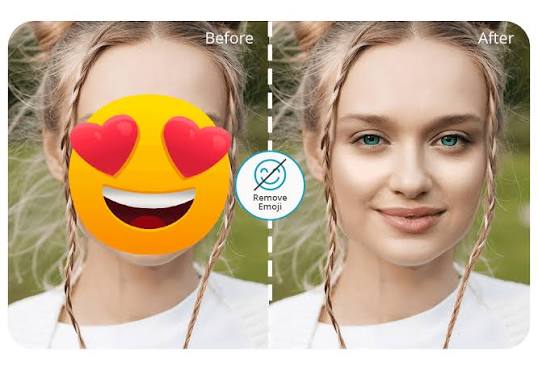
Short answer: if the emoji is already saved into a JPEG, PNG or screenshot, the pixels underneath it are gone. No website, app or AI model can bring them back — it can only guess at what was there and paint a plausible replacement. That distinction matters, because every method below is a reconstruction, not a recovery.
This guide explains why the “remove emoji from photo” promise is usually misleading, which tools actually produce a usable result in 2026, and how to avoid the fake remover sites that exist only to collect your photos.
Why a flattened emoji can never be removed
When you place an emoji or sticker on a photo inside an app, the app composites its layers into one flat image. Only the final colour value of each pixel is written to the file. The original photo still exists in memory while you edit, but once you export or save, the layer is merged and the data underneath the emoji is discarded.
JPEG compression makes it worse. The format throws away fine detail to keep files small, so even the surviving pixels are approximated. A screenshot adds a third layer of loss: it re-encodes an already compressed image.
That is why the most-upvoted answer on photo-editing forums to “can I see what was behind the emoji?” is a flat no. There is no hidden layer to reveal, no metadata that stores the original, and no AI that can recover information that was never written to the file.
The three cases where removal really is possible
There are exceptions, and they are worth checking before you try anything else:
- You still have the original file. The emoji was added to a copy, so the untouched original is on your phone, in a cloud backup or in a chat thread.
- The emoji sits on its own layer. Photoshop, Photopea, Canva and PicsArt project files keep layers separate. Delete the layer and export again — nothing is reconstructed, because nothing was lost.
- Your editor kept a non-destructive history. Google Photos edits and some gallery apps store the edit as a set of instructions. Reverting the edit restores the original image exactly.
If none of those apply, you are in reconstruction territory. The rest of this article is about doing that as convincingly as possible.
Seven methods that actually work in 2026
1. AI inpainting on the web
Inpainting tools let you brush over the emoji and generate new pixels that match the surrounding skin, hair or background. The best-known options are Photoshop’s Generative Fill, Google’s Magic Eraser and a growing list of browser-based editors. Results on a small emoji over a plain background can be excellent. Over a face, expect a synthetic look — especially around eyes, teeth and hair edges, where the model has the least information.
Treat every result as a plausible invention, not a restoration. Zoom to 100% before you decide it looks right.
2. Google Magic Eraser
Magic Eraser is built into Google Photos on Pixel phones and is available on other Android devices and iPhone through a Google One subscription. Select the emoji area, let it process, and compare. It is fast, it is good on simple textures, and it is less convincing on faces.
3. Samsung Object Eraser
On Samsung phones, open the photo in Gallery, tap Edit, then the Object eraser icon, and draw around the emoji. It is free, offline and surprisingly capable on backgrounds. Like every tool in this list, it reconstructs rather than recovers.
4. Photoshop or Photopea Generative Fill
Make a loose selection around the emoji, run Generative Fill with an empty prompt, and generate a few variations. Photopea offers a similar workflow in the browser for free. This is the most controllable option, because you can retouch the output with the healing brush afterwards.
5. Clone stamp and healing brush
Manual retouching still wins on small emojis over regular textures. Sample nearby skin or fabric with the clone stamp, then blend the seam with the healing brush. It takes a few minutes and no subscription, and it does not invent a new face — it copies real pixels from the same photo.
6. Crop and reframe
If the emoji sits near an edge, a tighter crop often removes it without any retouching. It changes the composition, but it is honest and instant, and for a social post a square or vertical crop is usually an improvement anyway.
7. Ask the sender for the original
The fastest fix is also the least glamorous: ask the person who sent the picture for the unedited version. Most messaging apps compress and flatten images before sending, so the file you received is already the damaged copy. The original on their phone is intact.
Quick comparison
| Method | Platform | Cost | Realistic result |
|---|---|---|---|
| AI inpainting (web) | Any browser | Free to paid | Good on plain areas, synthetic on faces |
| Magic Eraser | Android, iPhone | Free on Pixel, Google One elsewhere | Fast, decent on textures |
| Object Eraser | Samsung | Free | Good on backgrounds |
| Generative Fill | Photoshop, Photopea | Subscription or free | Best control, still invented |
| Clone stamp | Desktop and mobile editors | Free to paid | Most natural for small areas |
| Crop | Any editor | Free | Perfect, but changes framing |
| Ask for the original | Any | Free | Perfect, if the sender still has it |
iPhone: what to use
iPhones had no built-in object eraser for years. That changed with Clean Up in Photos, part of Apple Intelligence on supported models running iOS 18.1 or later. On older iPhones the Photos app can crop, adjust and retouch blemishes, but it cannot reconstruct an area covered by an emoji.
- Open the photo in Photos and tap Edit.
- Look for Clean Up in the tool row. If it is missing, your device or iOS version does not support it.
- Brush over the emoji, wait for the preview, then tap Done.
- If Clean Up is unavailable, export the photo to Photopea in a browser and use Generative Fill or the clone stamp.
Android: what to use
- Pixel: Google Photos, open the photo, Edit, Tools, Magic Eraser, then circle the emoji.
- Samsung: Gallery, Edit, Object eraser, brush the emoji, Save.
- Other Android phones: Google Photos Magic Eraser needs a Google One plan; otherwise use a browser-based editor so nothing is installed on the device.
Why most “free emoji remover” websites are a waste of time
Search the phrase and you will find dozens of pages promising one-click removal. Many are not tools at all. Some are landing pages that never produce a download, some throttle you with a countdown and then ask for a subscription, and some exist mainly to collect the photos people upload.
- Fake progress bars. A tool that “processes” forever and then asks you to come back later is not doing any work.
- Upload harvesting. Every image you upload to an unknown site is a copy you no longer control. Many of these sites keep uploads far longer than their privacy page claims.
- APK downloads. “Emoji remover” apps offered as sideloaded APKs are a common malware delivery route. If it is not in the Play Store or App Store, do not install it.
- Subscription traps. A free trial that requires a card, followed by a charge you did not expect.
Use tools you can name, from companies you recognise, and prefer ones that process the image in your browser so the file never leaves your device. If a site tells you to try again in a few hours, close the tab.
How to avoid the problem next time
- Keep the unedited original in a separate folder or album before you add anything.
- Use editors that save projects with layers, and keep the project file.
- Avoid forwarding screenshots as if they were photos — screenshots are the worst-case source for any retouching.
- Prefer non-destructive edits, so you can always revert to the original.
- Send photos as files rather than through chat compression when quality matters.
Frequently asked questions
Can you remove an emoji from a photo?
You can remove the visible emoji by covering it with reconstructed pixels, but you cannot recover what was underneath. If the file was flattened, that information no longer exists.
How do I remove an emoji from a photo on iPhone?
On supported models with Apple Intelligence, open the photo in Photos, tap Edit and use Clean Up. Otherwise use a browser-based editor such as Photopea and the clone stamp or Generative Fill.
How do I remove an emoji from a photo on Android?
On Pixel use Magic Eraser in Google Photos. On Samsung use Object eraser in the Gallery editor. Both are free on those devices and both reconstruct the area rather than restoring it.
Can I see what was hidden behind an emoji?
No. There is no hidden layer, no metadata and no AI shortcut. Anything you see in a “revealed” version was generated by a model, not recovered from the file.
Are free emoji remover websites safe?
Some are, many are not. Avoid sites that require an account before showing a result, that make you download an app installer, or that never finish processing. Browser-based tools that keep the image local are the safer choice.
Does WhatsApp keep the original photo?
WhatsApp compresses images by default and stores only the version that was sent. If you sent the emoji-covered image, the recipient has the compressed copy, and the original on your phone is the only clean version.
Final word
The honest version of “remove emoji from photo” is “rebuild the area behind it”. Once you accept that, the right tool is simply the one that produces the most believable texture for your specific image: Magic Eraser or Object eraser for quick background fixes, Generative Fill for control, clone stamp for small areas over skin, and a crop when the emoji is near an edge.
And if someone sends you a photo with a face covered by an emoji, the only reliable way to see the original is to ask them for it. For more practical guides, browse AboveInsider.